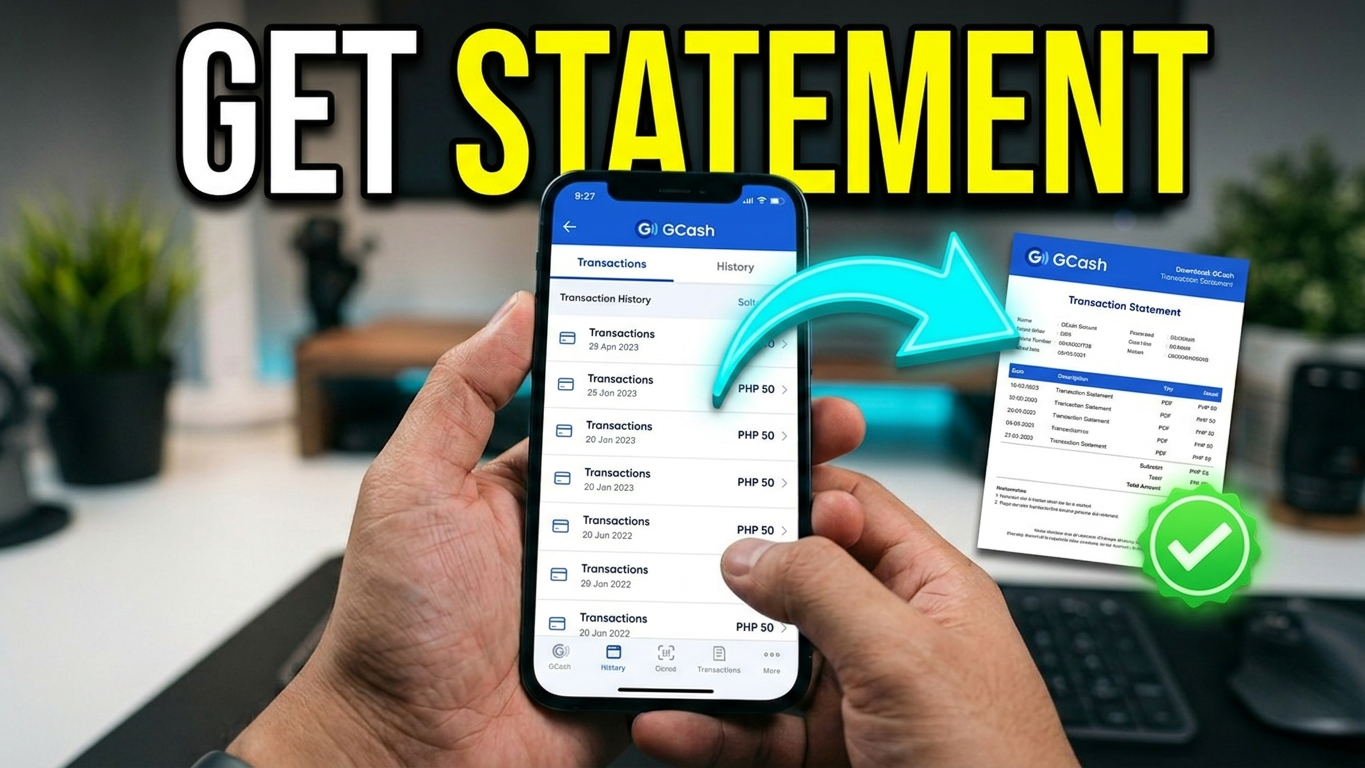
To download your GCash transaction history, you must request it directly through the mobile application, which will send a secure PDF document to your registered email address.
Step 1: Request History in the App
- Open the GCash app on your mobile device.
- Tap Activity or Transactions located at the bottom of the home screen.
- Scroll to the bottom of the page and tap Request transaction history.
- Verify that your displayed email address is correct.
- Select your desired date range (you can choose a range spanning up to 4 years).
- Tap Submit Request.
Step 2: Download and Open the Document
- Log into your email client and look for a message with the subject line “Your GCash Transaction History”. (Note: If you can’t find it, check your Spam or Junk folder).
- Download the attached PDF file to your device.
- Open the PDF and enter the required password to unlock it.
🔐 Password Format
The document is encrypted for security. Your password is your last name in lowercase letters, immediately followed by the last 4 digits of your GCash mobile number (e.g., delacruz1234).
Note: If your last name contains the special character “ñ”, replace it with a standard “n”.
For more detailed technical troubleshooting or policy limitations, visit the official GCash Help Center Guide.